
|
|
#1
 09-21-2016, 05:41 PM
|
|||
|
|||
 How to Perform a Clean Installation of macOS Sierra
macOS Sierra is Apple's latest desktop operating system, which succeeds OS X El Capitan and adopts a new name to bring it in line with iOS, watchOS, and tvOS. The OS will come pre-installed on all new Macs once current stock is depleted and is a free download for existing Mac owners.
 The main new feature in macOS Sierra is deep Siri integration, bringing Apple's personal assistant to the Mac for the first time. It also adds new features to Photos and Messages, and includes Continuity smarts like Universal Clipboard and an Auto Unlock option for Apple Watch owners. This tutorial explains how to download macOS Sierra and Perform a Clean install, which offers several benefits over the automatic upgrade process included in the Installation package. Benefits of a Clean Install A Clean install can remove an**ying quirks and strange behaviors that your Mac may have inherited over time due to driver upgrades, wonky apps, and messy Installation procedures. Performing a fresh install can also reclaim lost disk space caused by junk files left by third-party apps, and can generally make your Mac feel a lot snappier, enabling you to relive that feeling of booting it up for the first time. 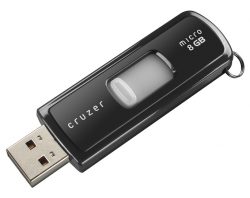 To complete the Clean install procedure described below, you'll need an 8GB or larger USB thumb drive and an hour or two to spare. To complete the Clean install procedure described below, you'll need an 8GB or larger USB thumb drive and an hour or two to spare. You should also Perform a full backup of your Mac beforehand using Time Machine. That way you can restore your system from the Recovery partition if something goes wrong. Alternatively, save a bootable mirror image of your system to an external drive using a clone utility like SuperDuper! ($27.95) or Carbon Copy Cloner ($39.99). Compatibility Check Before you do anything, check that your Mac is compatible with Apple's new operating system. macOS Sierra supports the following:
Pre-Install **tes If you want total control of what data gets transferred to the new OS, you can sidestep the Migration Assistant and manually copy any important files and folders on your existing system to an external drive instead. It's also worth taking a screenshot of your desktop, to serve as a record of how you like things set up. Some users may find it useful to make a **te of the contents of their Applications folder for later reference. A screenshot may suffice (Command-Shift-4, then Space to capture the Finder window), but if **t, the following steps describe a simple way to create a list of apps. 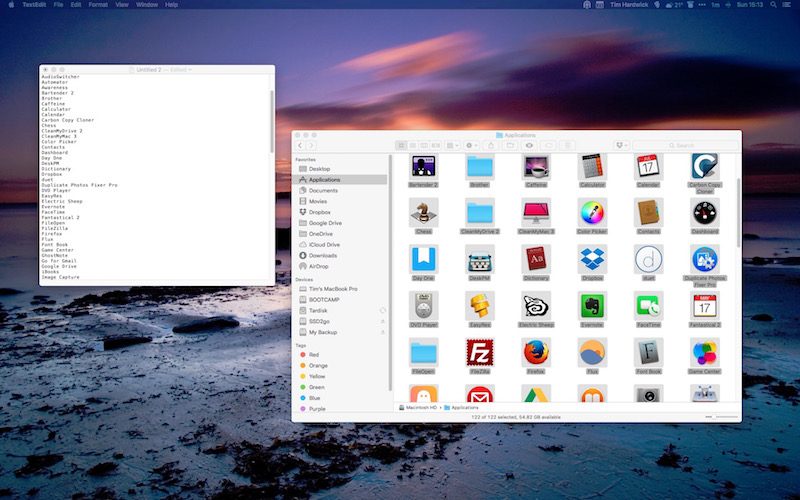
Lastly, de-authorize any services on your Mac, including your iTunes account (iTunes menu > Store > Deauthorize this Computer), since these are usually limited to a set number of systems. Create a Bootable Installer Download the macOS Sierra Installation package from the Mac App Store. Once it has downloaded, follow these steps to create a USB bootable installer.
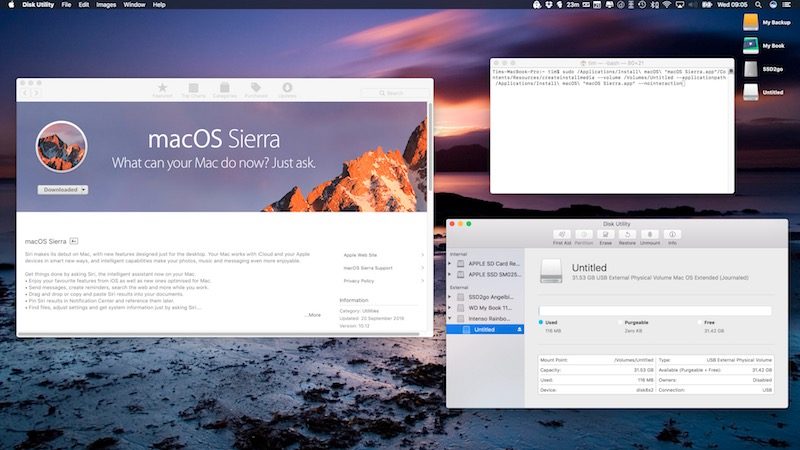 Restart and Install Once the USB installer has been created, restart your Mac and hold down the Option key as soon as you hear the reboot tone. Then follow these steps:
Once the Clean Installation of macOS Sierra is up and running on your Mac, you can either restore your data from a Time Machine backup using Migration Assistant (found in Applications/Utilities), or begin restoring your apps, files, and settings manually to get your Mac set up just the way you like it. 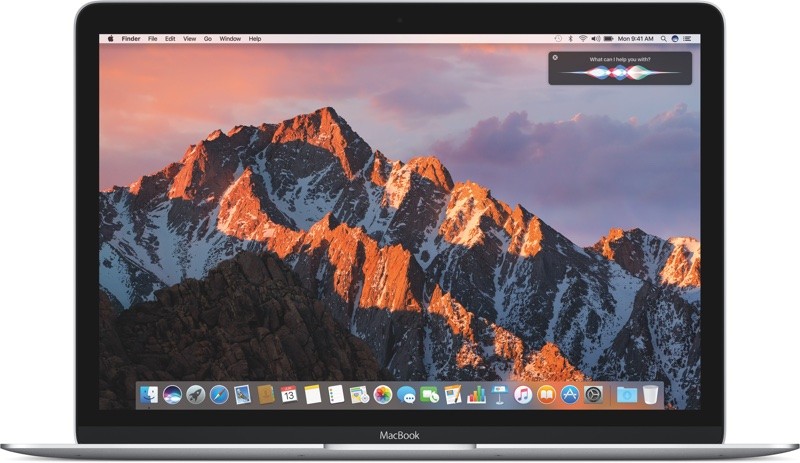 Related Roundup: macOS Sierra Tag: macOS Discuss this article in our forums أكثر... ??????? ??????: How to Perform a Clean Installation of macOS Sierra || ??????: ahlam1399 || ??????: اسم منتداك

|
|
|


 العرض الشجري