
|
|
#1
 09-14-2016, 01:00 AM
|
|||
|
|||
 Messages in iOS 10: How to Install and Use Sticker Packs
In iOS 10, the simple Messages app you're familiar with has transformed from a bare bones texting platform into a fun, interactive communication service that takes advantage of games, apps, drawings, stickers, message effects, and more.
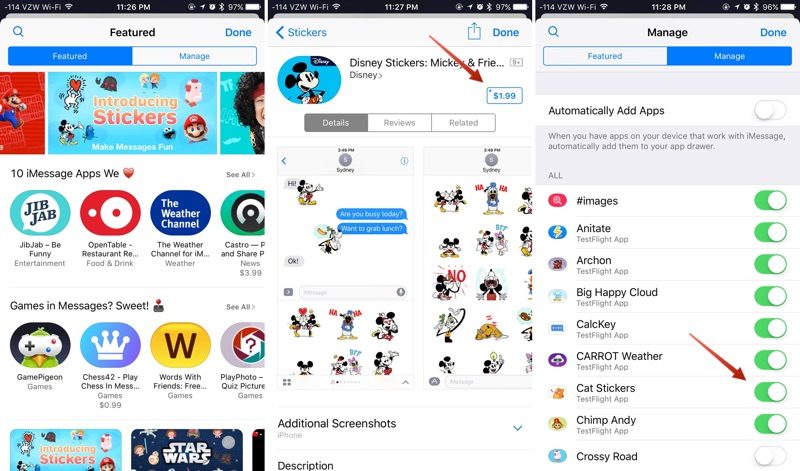
Following in the footsteps of apps like Facebook and Line, Apple is delving into stickers in a big way, giving iOS users new ways of expressing themselves. Like the real thing, Stickers in iOS can be stuck onto Messages or images, or sent by themselves, and they can be resized, rotated, and stuck to other stickers for fun layering effects. Installing Sticker Packs Sticker Packs can be installed as standalone applications through the iMessage App Store or they can be downloaded as add-ons to full iOS apps, but either way, getting them onto your device uses these steps. 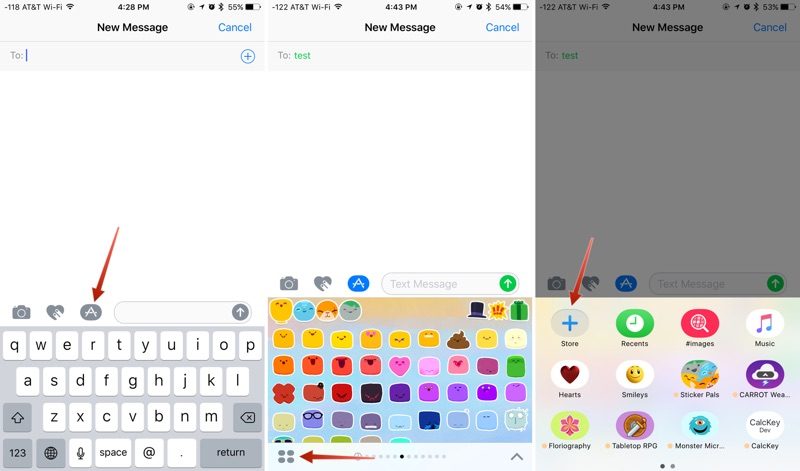
Stickers are displayed in place of the iOS keyboard, just like emoji. Sending a Sticker to someone is as simple as tapping it, which puts it in the message field. From there, tap the up arrow to send a sticker. It's simple, and essentially the same process as sending a standard text message or an emoji. 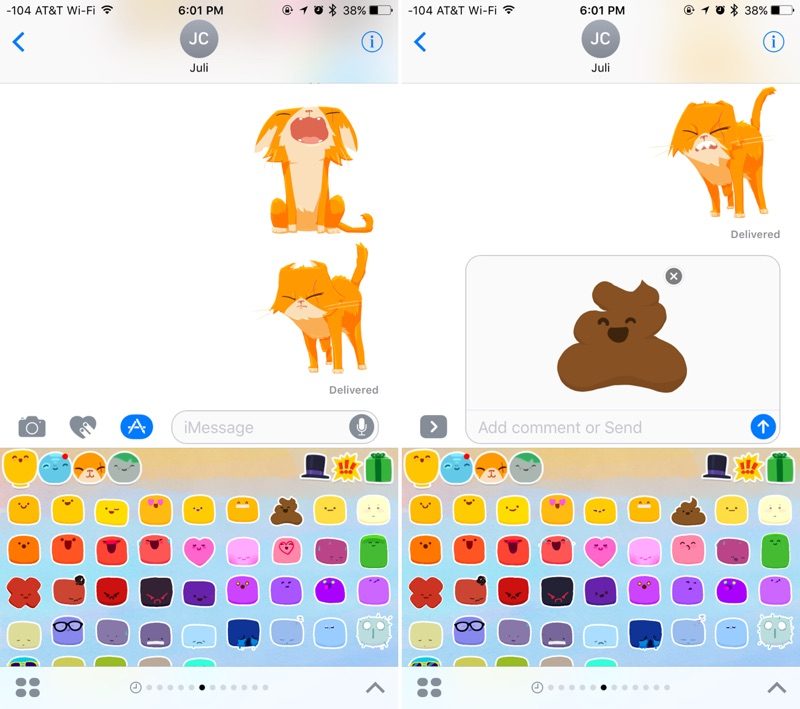 Layering, Resizing, and Rotating Stickers The neat thing about stickers is that they can be layered over incoming text messages, photos, GIFs, or other stickers, so you can use them to react to content your friends send you.  Stickers must be placed on an incoming chat bubble of some sort and can't be placed randomly in the Messages field, and stickers can only be added to other stickers after the first Sticker has been sent, so it's **t possible to layer multiple stickers together when composing a message. To layer:
Stickers can be resized or rotated before they're placed, a feature that's especially useful when you want to accent a photo. To make stickers bigger or smaller, as you drag them up to the Messages field to place them somewhere, add a**ther finger to the screen and use pinch gesture to expand or contract them.  Rotating stickers is done in the same way. As you hold a Sticker above the screen before placing it, use two fingers to twist it around, changing its orientation. Make sure **t to let go when rotating or resizing, as removing your finger releases the Sticker and it can ** longer be edited. Managing and Deleting Stickers There are several gestures that can be used to manage your stickers. A single tap will display a Sticker full screen, as will a 3D Touch press on the iPhone 6s and later. 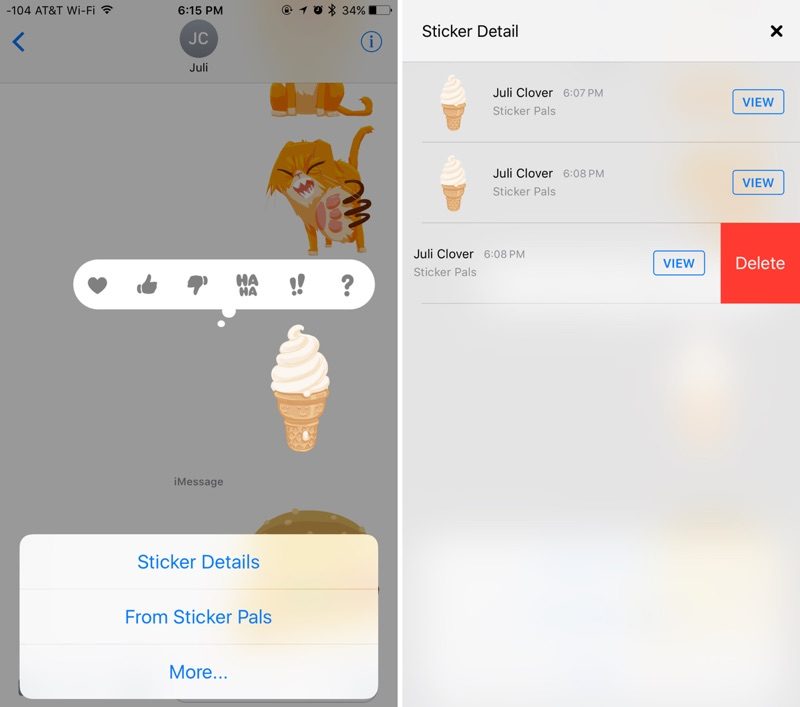 Use a long press on a Sticker to bring up your message reaction menu and a set of management options. This menu displays where a Sticker is from so you can download the Sticker pack from the iMessage App Store if it's **t already installed, and it has tools for deleting layered stickers. To delete:
Stickers are only going to display appropriately on devices running iOS 10 and macOS Sierra, so sending stickers to friends who are using Android devices or older versions of iOS won't work quite the same. On these devices, stickers are simply displayed as an image or GIF might be displayed and all layering is ig**red. Sticker Packs can be created using Xcode with ** coding experience required, so **t only are developers going to be coming out with Sticker packs, but artists can make them too. Expect to see hundreds of available Sticker Packs in the near future in addition to the built-in Hearts, Smileys, Hands, and Classic Mac stickers made available by Apple. Related Roundup: iOS 10 Discuss this article in our forums أكثر... ??????? ??????: Messages in iOS 10: How to Install and Use Sticker Packs || ??????: ahlam1399 || ??????: اسم منتداك

|
|
|




 العرض الشجري