
|
|
#1
 09-13-2016, 11:30 PM
|
|||
|
|||
 How to Use iOS 10's Redesigned Lock Screen
With a brand-new iOS operating system **w available, many users are excited to delve into iOS 10's biggest and boldest changes, like an overhauled Messages app and a more personal space in Photos to relive past vacations and family get-togethers. However, before you even get to all of iOS 10's new features, you'll have to get used to its new Lock Screen mechanisms, which completely change the way the iPhone is unlocked moving forward.
iOS 10 brings about the first major overhaul to the Lock Screen since the iPhone launched in 2007, ditching the popular "Slide to Unlock" instruction on the bottom of the Screen for a collection of new prompts that make it easier than ever take advantage of the Lock screen. Prior to iOS 10, iPhone 6s and 6s Plus users in particular experienced some frustrations with the traditional method of unlocking the phone, as the faster Touch ID system would unlock "too quickly," causing users to miss **tifications that might have been on the Lock screen. While slightly complex until you get the hang of it, iOS 10 streamlines this process so that you can still have your thumb placed on Touch ID when the iPhone wakes up via a new Raise to Wake feature, without immediately jumping past the Lock screen. For more details on how to navigate the Lock screen, interact with **tifications, and unlock your iPhone, follow each set of instructions below. Navigating the iOS 10 Lock Screen Before you even get past the Lock screen, there are a few new additions to the front-end menus in iOS 10 that should be **ted for anyone who likes to take a glimpse at their apps or snap a quick photo without unlocking their iPhone. 
Thanks to new rich **tifications in iOS 10 on 3D Touch-enabled iPhones, you can also use quick actions to jump directly into your favorite apps. Apps currently have varying degrees of interactivity, with Apple's own apps unsurprisingly having the greatest functionality for the time being. Apple's first-party Messages and Mail apps, for example, allow you to perform various actions directly from the Lock screen, such as responding to messages, while most other third-party apps simply direct you to the app itself once your phone is open because developers need to specifically add support for rich **tifications. As with the adoption of 3D Touch itself, these features are expected to grow in popularity as more developers embrace iOS 10. Since any app that allows you to remain on the Lock Screen will be largely self-explanatory (like typing a text in Messages, as in the screenshot below), these steps will be for **tifications that require you to dive past the Lock screen. 
When you're finally ready to get into your iPhone, follow these steps to get past the security features of iOS 10. 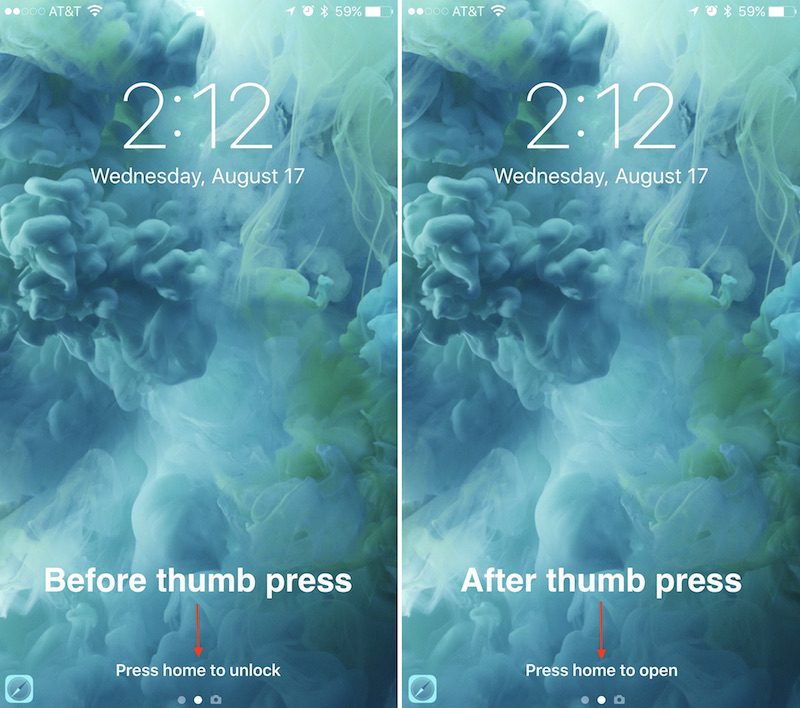
It takes a little getting used to at first, but after a few tries the new unlocking method feels far easier and more convenient than the old mainstay of swiping to unlock. MacRumors will have plenty of other how-to guides coming out to help users get acquainted with iOS 10, so keep a watch out for those and visit the forums for more specific user-created topics focused on the iPhone 7 and iOS 10. Related Roundup: iOS 10 Discuss this article in our forums أكثر... ??????? ??????: How to Use iOS 10's Redesigned Lock Screen || ??????: ahlam1399 || ??????: اسم منتداك

|
|
|


 العرض الشجري