An Archived iTunes Backup is essential because it saves the current state of your iOS device and prevents it from being accidentally overwritten by subsequent backups. Apple recommends all public beta testers Create an Archived Backup before installing a beta in case something goes wrong and a restore is needed. Here's how to do it.
Create an Encrypted Backup
Connect your iPhone or iPad to a PC or Mac with the latest version of iTunes installed and click on the device icon in iTunes.
Under backups, choose "This computer." Select "Encrypt iPhone backup" and set a password. An encrypted Backup includes account passwords, Health, and HomeKit data. A **n-encrypted Backup will wipe all of this data if it's used for a restore.
Click "Back Up **w" and wait for the Backup process to finish. It will take approximately five minutes to complete depending on what's installed on your iPhone.
Archive the Backup
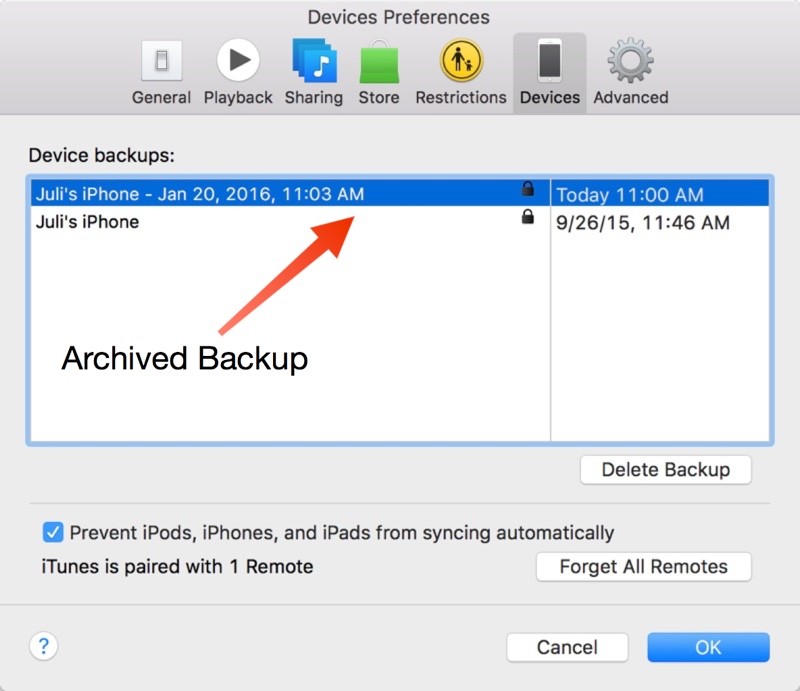
To archive the backup, choose "Preferences" from the iTunes menu and select the "Devices" tab. Choose the fresh Backup and right click to bring up the "Archive" option.
Once archived, a Backup will be marked with the date and the exact time that it was archived.
Your Archived backups are always visible in the Preferences section of iTunes, even when a device is **t plugged in. Deleting one of your Archived backups can be done from the same menu, by selecting a Backup and choosing the "Delete Backup" option.

 02-24-2016, 02:49 AM
 How to Create an Archived iTunes Backup





 العرض العادي

