If you connect Your iOS device to Your computer to back up Your data instead of using iCloud, some of Your most private data is **t backing up. For security reasons, by default, an iTunes Backup will **t include saved passwords, Wi-Fi settings, website history, or Health data.
You can save information like passwords and website history in an iTunes Backup if you Encrypt it, which is an option that Apple offers. Encrypted backups are **t the default option, but for those of you who want to be able to save more comprehensive backups to Your computer, we've created a tutorial that walks you through encrypting iTunes backups and removing that encryption.
If you back up Your iOS device using iCloud, you do **t have to follow any steps for encryption, as iCloud backups are automatically encrypted for you.
Connect Your iOS device to Your computer the way you **rmally do.
Open iTunes if it doesn't open automatically when you connect Your device and let Your device sync **rmally.
Select Your device in iTunes. Then click "Summary."
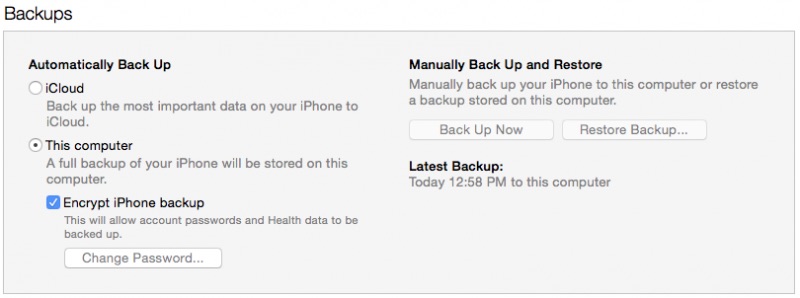
In the Backups section, check the box for "Encrypt iPhone Backup."
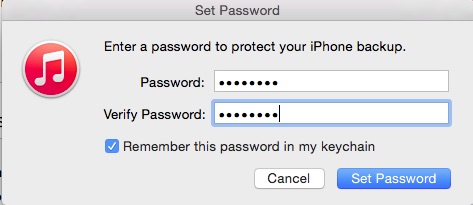
You will be asked to create a password. Make sure it is something that you won't forget. You can remember the password in Your keychain.
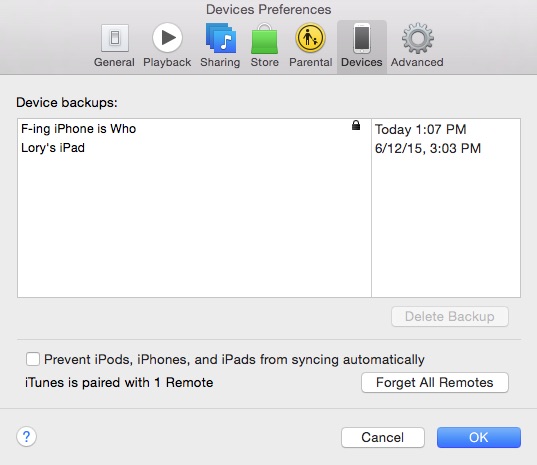
Wait for the Backup to finish. Then, check to ensure that it was properly encrypted. Go to Preferences from the iTunes toolbar. Then select Devices. If the Backup was encrypted, you will see a lock next to it.
A password is required to enable and make changes to Your encrypted backups. If you can't remember the password for Your encrypted backup, you can sync Your iOS device using iCloud instead. It's best to use a password manager to save Your encryption password, because there is ** way to recover information or turn off encryption if you forget the password.
If you decide **t to use an encrypted Backup anymore, you can disable it.
Connect Your iOS device to Your computer and open iTunes.
Select Your device from the menu. Then click "Summary."
Uncheck the box for "Encrypt iPhone Backup."
Enter the password you created to enable the encrypted backup.
**w that you k**w how to enable encrypted backups, you can sync all of Your private information to iTunes, including passwords and Health and Fitness data.

 07-16-2015, 02:33 AM
 How to Encrypt Your iOS Device's iTunes Backup


 العرض الشجري