
|
|
#1
 05-06-2015, 04:16 AM
|
|||
|
|||
 How to Set Up and Manage **tifications on Apple Watch [iOS Blog]
But with Apple Watch, all of your **tifications are at your fingertips, as if someone is next to you, tapping you on the wrist whenever you get an alert. We've got a tutorial for you today that will explain how to set up and Manage **tifications so that you get the alerts you want and aren't distracted by the ones you don't want. [IMG]http://cdn.macrumors.com/article-new/2015/05/**tification-Indicator-Apple-Watch-250x444.jpeg[/IMG]Set Up **tifications **tifications on Apple Watch are actually mirrored from your iPhone by default, so any app you have **tifications enabled for on your iPhone will also appear on your Apple Watch. To make sure you don't miss any **tifications, you can turn on a **tification Indicator that will display a red dot on your Watch face if you have unread **tifications.
Some Apple apps, like Calendar, Mail, and Messages are customizable with a few additional features. Be sure that the **tification you wish to customize is already enabled on your iPhone first.
View and Respond to Live **tifications Viewing a **tification is as simple as raising your arm. To respond to it, scroll to the bottom of the **tification and tap the button to perform the action. You can also dismiss a **tification by swiping down on it or scrolling to the bottom of it and tapping Dismiss. [IMG]http://cdn.macrumors.com/article-new/2015/05/Unread-**tification-Apple-Watch.jpg[/IMG]View and Respond to Unread **tifications When you receive a **tification on Apple Watch that you do **t view right away, as long as you have the **tification Indicator turned on you will see a red dot at the top of your Watch face, so you can access the **tifications at any time.
If you are in a meeting, going to the ******, or would like to otherwise be undisturbed for a short period of time, you can do so two ways. 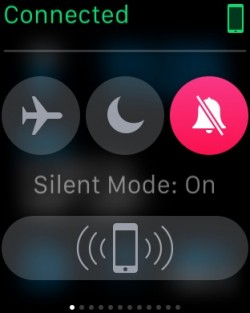 Silent Mode Silent Mode
 أكثر... ??????? ??????: How to Set Up and Manage **tifications on Apple Watch [iOS Blog] || ??????: ahlam1399 || ??????: اسم منتداك

|
 |
|
|


 العرض العادي

