
|
|
|||||||
 |
|
|
أدوات الموضوع | انواع عرض الموضوع |
|
#1
 09-14-2016, 04:04 AM
|
|||
|
|||
 How to Use Messages' Tapback, Screen Effects and Bubble Effects in iOS 10
All of these tools are simple to use, but there are some hidden features and accessing them for the first time can be tricky, so make sure to check out our how-to for pointers. Using Bubble Effects There are currently four kinds of Bubble Effects that can be added to chat bubbles to impact the mood of a message: Slam, Loud, Gentle, and Invisible Ink. Each one changes the way a chat Bubble looks when it's delivered to a friend. Slam, for example, expands the size of the chat Bubble and slams it down onto the screen, while Loud enlarges the chat Bubble and makes it shake for a few seconds before it settles down. Gentle, meanwhile, makes the text within the chat Bubble tiny for a few seconds before it expands in size, and Invisible Ink, the neatest effect, fully obscures the look of the text in the chat Bubble until a finger is swiped over it to unveil it. 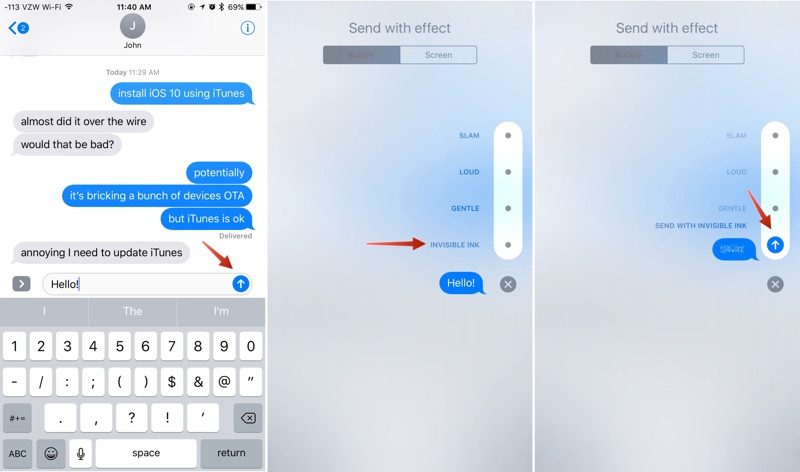 Here's how to use Bubble Effects:
Bubble Effects change the look of the chat bubbles, but Screen Effects temporarily alter the look of the entire Messages display with full Screen animations that play alongside text messages you send. 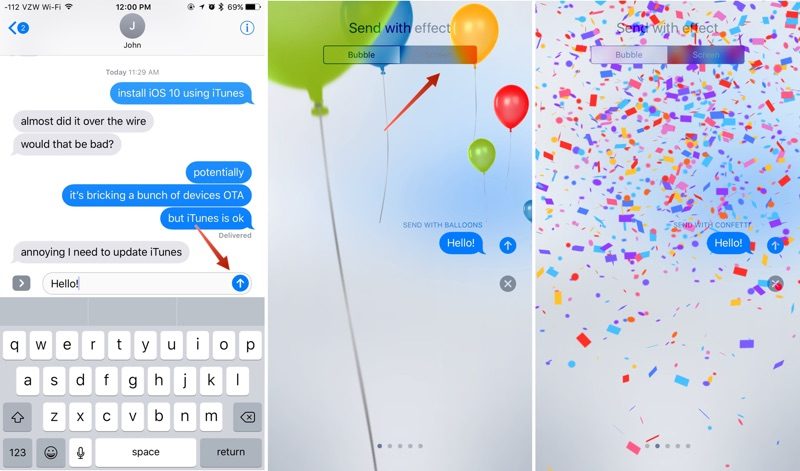
Using Tapback Tapback responses are little icons that can be added to any incoming message bubble, including texts, photos, GIFs, and more, allowing you to quickly share a reaction without having to type a full message. Tapback icons, when used, are added to the chat Bubble that was selected and are visible to both you and the message recipient. Tapback options include a heart, thumbs down symbol, thumbs up symbol, a "haha" icon, an exclamation point, and a question mark. Each symbol represents a different emotion or response, which is conveyed through both the icon and the accompanying **tification. 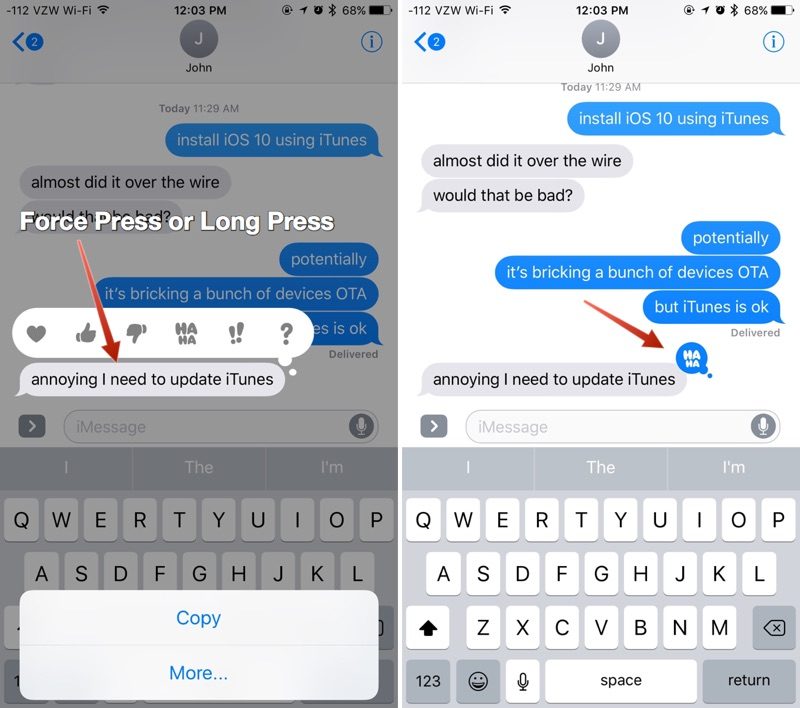 Using a heart Tapback response means you "love" a photo or text message, for example, and when you send a heart response, your friend will see the message "Juli loved an image," if attached to a photo. Here's a full list of Tapback responses and the **tification that accompanies them:
If you're having trouble getting Bubble Effects and Screen Effects to work, the Reduce Motion setting needs to be turned off if you've turned it on. The feature can be accessed in Settings --> General --> Accessibility --> Reduce Motion. Make sure it's toggled to off, aka **t green. With Reduce Motion turned on, Screen Effects and Bubble Effects do **t work because they're motion-based. If you don't like Screen Effects and Bubble Effects, turning on Reduce Motion is a good way to disable them. Bubble and Screen Effects are only displayed properly on iOS devices running iOS 10 and macOS Sierra. Related Roundup: iOS 10 Discuss this article in our forums أكثر... ??????? ??????: How to Use Messages' Tapback, Screen Effects and Bubble Effects in iOS 10 || ??????: ahlam1399 || ??????: اسم منتداك

|
|
|
|


 العرض العادي

