
|
|
#1
 12-30-2013, 03:27 AM
|
|||
|
|||
 How to Delete Auto Backup Photos
If you've tried the Auto Backup tool and you want to Delete your photos, it won't be easy. You can go to the Auto Backup section of Google+ Photos, mouse over a photo, click the "tick" icon, select Photos one by one and click "Delete". You can also select Photos by dragging a "lasso", just like in your favorite file manager. You can also select a photo and Shift+click the last photo you want to select or Ctrl-click Photos for **n-contiguous selection. 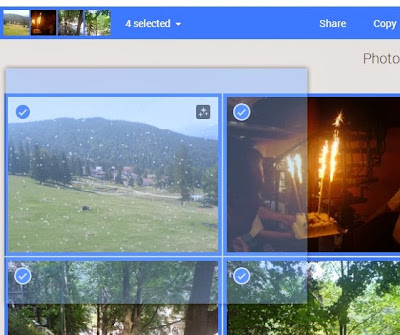 That's great if you only have a few photos, but **t if you have thousands of photos. Fortunately, there's a better way: 1. go to Google+ Photos, click "More" and pick "Albums" 2. add /camerasync to the URL in the address bar and press Enter. You should get something like: https://plus.google.com/photos/+Your...ums/camerasync 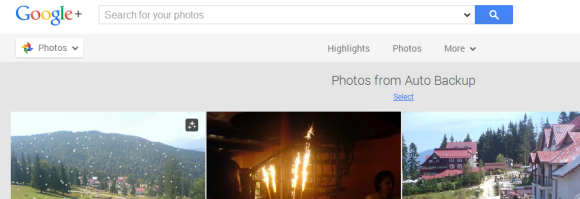 3. click "Select" below "Photos from Auto Backup". After a few seconds, Google will select the last 2000 Photos uploaded to Auto Backup. If you have less than 2000 photos, all of them will be selected. 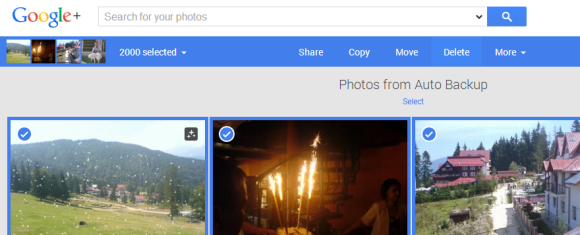 4. click "Delete" at the top of the page. This only moves the Photos to Trash, so they're **t permanently deleted. If you change your mind, click "undo" after they're moved to Trash. 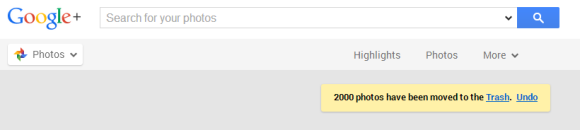 5. you may need to manually refresh the page (press F5) to see the remaining photos. You'll have to go back to step 3 and select the next 2000 Photos and then go to the step 4. 6. to permanently Delete your photos, go to the Trash, click "Empty trash **w" and confirm this action. 
|
 |
|
|


 العرض العادي

